
FluentRead - Open Source Translation Plugin
FluentRead configuration guide — open-source browser translation plugin with 20+ engines and AI model support. Connect to Nova Router for immersive bilingual reading.
Chat Settings Options
In the System Settings -> Chat Settings of the Nova Router console, you can add the following shortcut options for easy one-click population to FluentRead on the Token Management page:
{ "FluentRead": "fluentread" }🌊 FluentRead is an open-source browser translation plugin dedicated to providing a native-like reading experience.
- Project Address: https://github.com/Bistutu/FluentRead
🌟 Core Features
Smart Translation Engine
- Multi-Engine Support: Supports 20+ translation engines
- Traditional Translation: Microsoft Translate, Google Translate, DeepL Translate, etc.
- AI Large Models: OpenAI, DeepSeek, Kimi, Ollama, etc.
- Custom Engine: Supports custom translation service configuration
Immersive Reading Experience
- Bilingual Comparison: Original and translated text displayed side-by-side for easier reading
- Selection Translation: Select any text to get instant translation results
- One-Click Copy: Quickly copy translated text to improve reading efficiency
- Full-Page Translation: One-click translation of the entire webpage with a floating button, no page refresh required
Privacy and Customization
- Privacy Protection: All data stored locally, open-source and transparent code
- High Customization: Rich customization options to meet different scenario needs
- Completely Free: Open-source and free, non-commercial project
📦 Installation Methods
| Browser | Installation Method |
|---|---|
| Chrome | Chrome Web Store | Domestic Mirror |
| Edge | Edge Add-ons Store |
| Firefox | Firefox Add-ons Store |
🚀 Configuration Methods
Import Configuration from Nova Router Console (Recommended)
After the FluentRead plugin is installed in your browser, opening the Nova Router console's Token Management page will show a prompt for FluentRead.
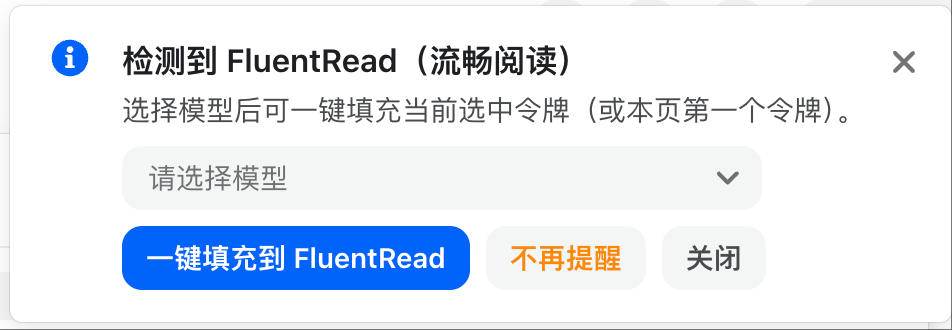
Recommended flow:
- Select the token you want to use for translation in the Nova Router console
- Choose the target model
- Click the one-click fill option for FluentRead
- Review the configuration in the browser confirmation dialog
- Confirm the import so FluentRead enables that configuration
Manually Fill in Configuration in FluentRead
| Configuration Item | Content |
|---|---|
| Translation Service | Select the service that corresponds to Nova Router |
| Access Token | Nova Router API key |
| Endpoint Address | Nova Router deployment address without /v1 |
| Model | Select from list, or custom model |
| Custom Model | Model Name |
How to confirm it worked
- FluentRead shows the newly imported or manually saved configuration
- Text selection translation returns results normally
- Full-page translation no longer reports token or endpoint errors
How is this guide?
Cherry Studio - Desktop AI Client
Cherry Studio configuration guide — connect this powerful desktop AI client to Nova Router with one-click API key setup. 30+ built-in AI assistants for various workflows.
Memoh - Containerized AI Agent Platform
Memoh integration guide — Connect the self-hosted containerized AI agent platform to Nova Router, creating AI bots with long-term memory for Telegram, Discord, Lark, QQ, WeChat, and more.